Serialized parts are tracked individually in inventory by serial numbers. Physical count transactions may be used to add serialized parts in inventory. A transaction can be done individually (Inventory | Transactions | Physical Count). Alternatively, the transactions can be done in batch by excel file upload (Inventory | Transactions | Import Physical Count).
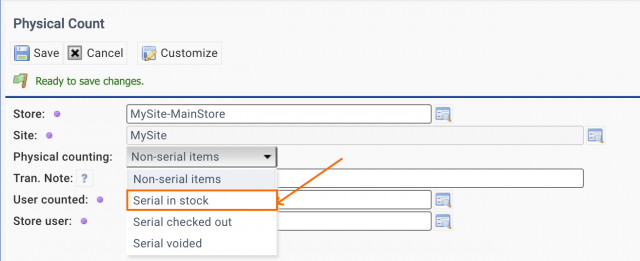
The following is a screenshot of physical count transaction (for one part):
- Select "Serial in stock" to add a serialized part in inventory.
- Click "Save" to move to next screen (see next screenshot).
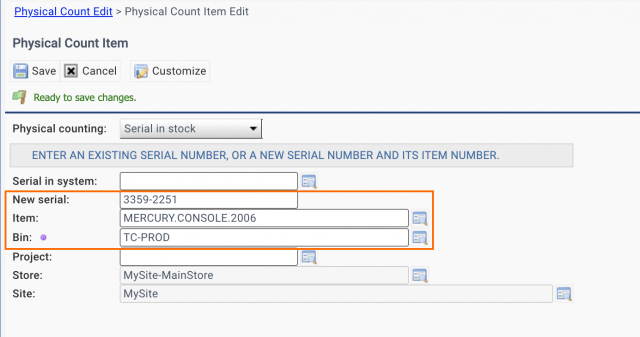
- Enter a "New serial", item number (or codification), and a bin where the part is stored.
- Click "Save" to commit the physical count transaction.
- If you are using an existing serial number, do not enter "New serial". Instead, populate "Serial in system", or look up one from the serial registry.
The transaction "Physical Count/Move (Quick)" (at Inventory | Transactions, or Barcode) does not work all the time for serialized parts. It will be addressed in the coming release of Calem R2026b (April 2026).
Additional Resources
- Physical Count Planning: Storeroom Areas
- How to Do Access Control by Roles (Group Design for Module Access)
- How to Barcode with Phone/Pad in Calem
- Calem Barcode for Physical Count
- Calem Barcode with Windows 10 Touch PC
- How to Implement PM Checklist
- Inventory Training
- User Guide and Admin Guide (customer account required)
- Calem Enterprise Training Site
- Calem Enterprise Blogs
- Calem Enterprise demo