Calem Blogs
Transform Calem Data into Dashboards with Power BI
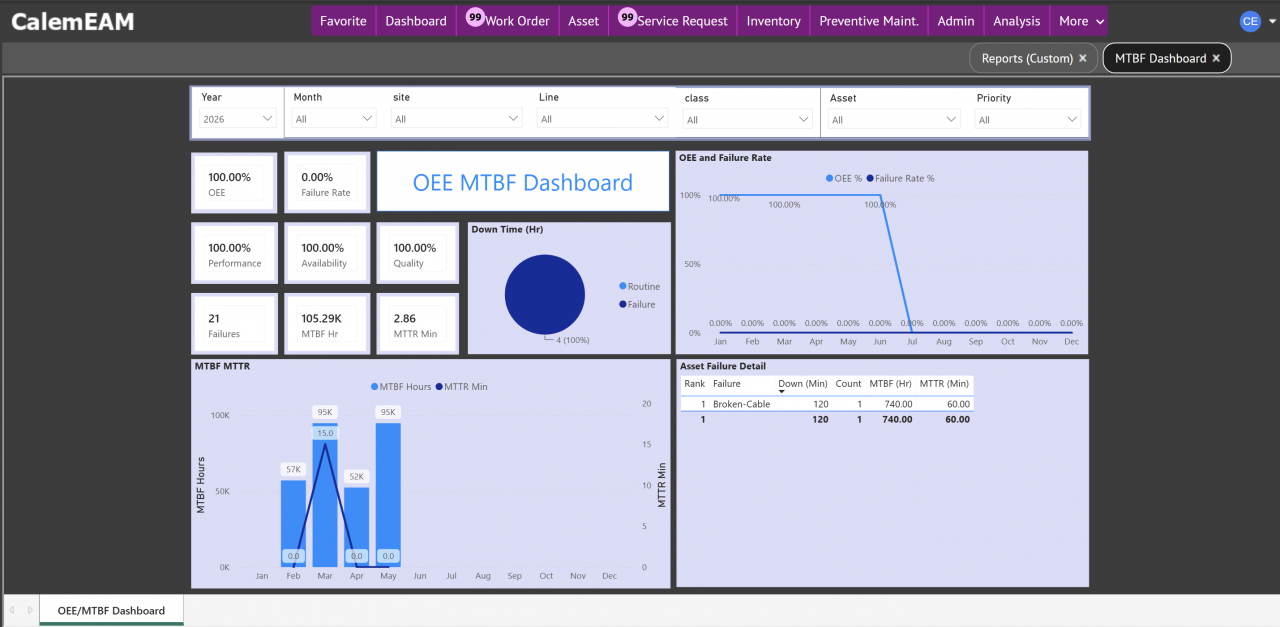
A Power BI dashboard is available for OEE (Overall Equipment Effectiveness) and MTBF (Meantime Between Failure) in the coming release of R2026d (June 2026).
- Power BI is Microsoft's business intelligence (BI) and analytics platform.
- The dashboard can be deployed in Power BI service and surfaced inside Calem.
- The screenshot below shows the OEE/MTBF dashboard inside Calem.
The flow charts shows the processes to integrate Calem with Power BI.
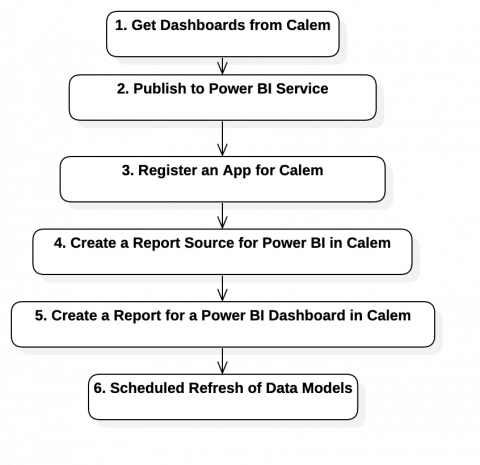
1. Get Dashboards from Calem
A Power BI dashboard includes a data model and visual components. Calem provides dashboards built for Power BI. The following items are provided by Calem:
- Data models for Power BI dashboards.
- A custom connector to populate the data models via Calem API.
- They are available as attachments at your Calem Service:
- Training module | Training List | Calem PowerBI Integration | Doc tab.
2. Publish to Power BI Service
The dashboards from Calem are published to the Power BI service of your organization. Users of your organization may access the dashboards outside Calem, or view the dashboard inside Calem.
- A Power BI service is required to host the dashboards.
- If you do not currently have Power BI service, you may sign up for Power BI service at app.powerbi.com. Alternatively, you may choose to have Calem provision your users in Calem Power BI service. A Power BI pro license is required. A monthly subscription fee is charged per user.
- Install Power BI desktop and point to your Power BI service.
- Follow steps to complete the installation.
- Log into the Desktop with your Power BI admin account.
- Create a directory in Windows: Documents\Microsoft Power BI Desktop\Custom Connectors
- Deploy Calem connector "CalemBI.mez" to that directory.
- Launch Calem BI desktop and enable the connector at menu:
- Power BI | File → Options and settings → Options → Security → Data Extensions
- Enable loading uncertified custom connectors.
- Open Calem dashboard "Calem_OEE_MTBF.pbit" from Power BI desktop.
- A report is created from the template.
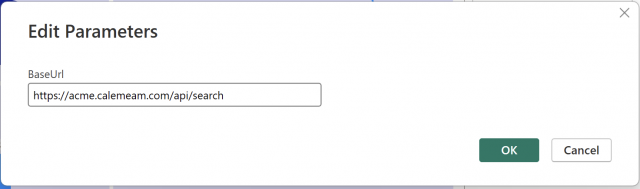
- Go to "Transform Data | Edit Parameters" to set URL to your Calem service.
- Base URL: it is the Calem API search URL. For instance: https://acme.calemeam.com/api/search. You may replace the service address (acme.calemeam.com) with your Calem address.
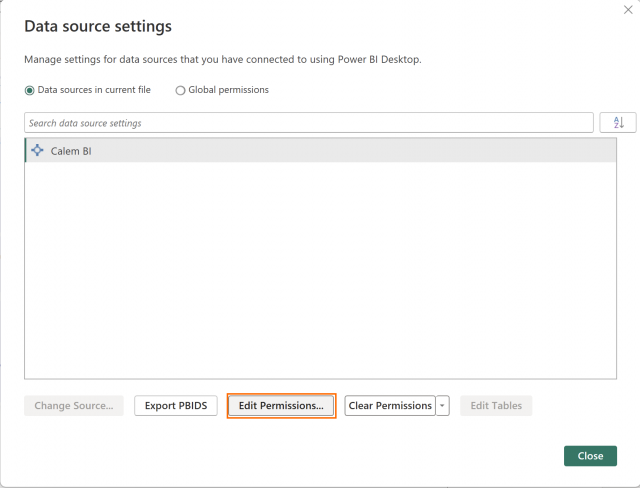
- Next, go to "Transform Data | Data Source Settings | Edit Permissions"
- Click "Credentials: Edit"
- Username: API key for Calem API.
- Password: the secret for the API key.
- Select "Apply Changes" and refresh data.
- It takes a while to load data from your Calem.
- Test the dashboard.
- When you are ready, publish the report from your Power BI desktop.
- Menu: Home → Publish
- Select a workspace of your Power BI service.
- The dashboard will be published.
- Get group Id. Navigate to Power BI service where the Calem dashboard is published to.
- Group Id is the workspace Id. You can find it by going to your workspace and inspect the address of the workspace page. For instance, the address of workspace page is: https://app.powerbi.com/groups/1b1d5978-8ff6-7806-ea5f-40e0a85e05c4/list?experience=power-bi
- The group Id is: 1b1d5978-8ff6-7806-ea5f-40e0a85e05c4.
- Get report Id in Power BI service.
- Open the report, go to File | Embed report | Web site or portal
- A dialog pops up including a URL for embeding: https://app.powerbi.com/reportEmbed?reportId=f199b4a8-2b1b-4ae8-b837-5ab6d62d793f&autoAuth=true.
- The report Id is: f199b4a8-2b1b-4ae8-b837-5ab6d62d793f.
3. Register an App for Calem
To surface a dashboard inside Calem a client app needs to be configured for Calem.
- Log into https://entra.microsoft.com/#home
- Create a new application: → App registrations → New registration
- Enter the following info:
- Name: CalemBI
- Supported account type: Accounts in this organizational directory only
- Redirect URI: Single-page application (SPA)
- Record the following:
- Application (client) ID
- Directory (tenant) ID
- Next, add API permission:
- API Permissions → Add Permission → Power BI Service
- Add: Dataset.Read.All, Report.Read.All, and Workspace.Read.All
- Enable Public Client / SPA:
- Authentication → Single-page application
- Add redirect URL: https://acme.calemeam.com/pbi/msal/msal_cb.php (replacing the service address, acme.calemeam.com, with your Calem address).
4. Create a Report Source in Calem
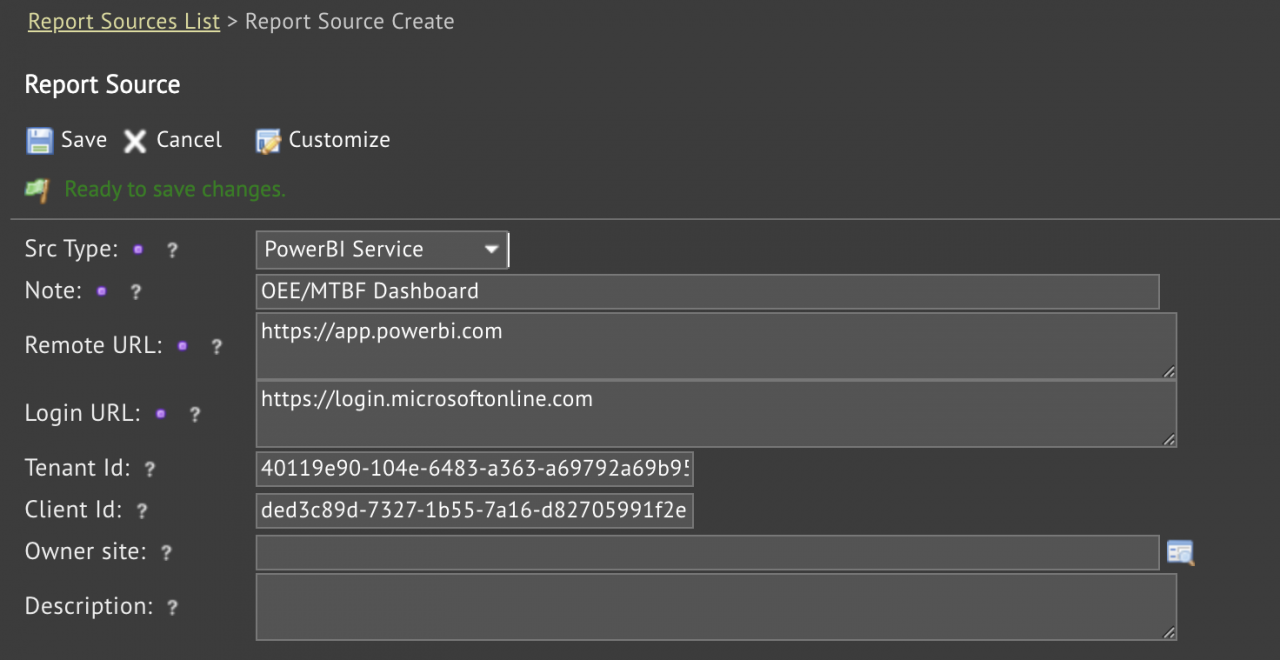
A report source needs to be created in Calem to surface a dashboard in Power BI.
- Menu: Admin | Data Design | Reports (Custom).
- Click button "Report Sources" in the toolbar of the report list.
- Create a new report source:
- Source type is: PowerBI service
- Source URL is: https://app.powerbi.com
- Login URL is: https://login.microsoftonline.com
- Enter the client Id and tenant Id (recorded above)
- The report source will be used next.
5. Create a Report for a Power BI Dashboard
A report will be created to point to a dashboard in the Power BI service.
- Menu: Admin | Data Design | Reports (Custom).
- Click button "+ Other" to create a report from a source other than Calem.
- Source type is: PowerBI service
- Source is the one created above.
- Enter report Id and group Id recorded above.
- Save the report.
- The report saved is displayed in Calem.
- Click "Print" button to launch the dashboard in Power BI.
- You may be prompted for authentication by Azure AD.
- If you have authenticated previously with Azure AD the login prompt may be skipped.
- Enter the username and password for a valid Power BI service user.
- The dashboard will be displayed (see the screenshot at the start of the blog).
- A non-admin user logging into Calem can access Power BI dashboards from Report module.

6. Scheduled Refresh of Data Models
Finally, let's set up the daily refresh of data models from Calem. The solution depends on how Power BI services are provisioned.
- If a client has own Power BI service, a Power BI Data Gateway needs to be configured by client to refresh the report data models daily.
- Client users access Calem dashboards through their own Power BI Service environment, just as they do with other Power BI reports.
- If a Power BI Data Gateway is not configured already, the client needs to set up one for scheduled data model refresh.
- If a client uses the Power BI service of Calem, the daily refresh is managed by Calem.
- Client users will be provisioned by Calem.
- Users can access Power BI service directly or inside Calem.
- A monthly subscription per user is charged.
7. Power BI Data Gateway
Power BI Data Gateway is the most secure option for data model refresh.
- It reaches out to Power BI service for refresh requests.
- It does not take inbound requests to launch data refresh. So, there is no firewall rules to manage.
- It needs to be kept up and running for data model refresh.
- Power BI Data Gateway is free from Microsoft.
The setup process is discussed below – visit the product web site (https://www.microsoft.com/en-us/power-platform/products/power-bi/gateway) for more info.
- Provision or use an existing Windows machine with a minimum of 2 CPU and 4GB RAM.
- Configure Calem to allow this machine for Rest API access (see Calem API Guide).
- Install On-Premise Power BI Data Gateway in Standard mode.
- Sign in with Power BI admin account
- Register the server as "Calem-Gateway"
- Set a recovery key
- Verify the Gateway in Power BI Service.
- Go to Power BI service
- Settings → Manage connections and gateways
- Verify gateway: Calem-Gateway
- Status: Online
- Install Calem Connector to gateway
- Copy CalemBI.mez to Documents\Microsoft Power BI Desktop\Custom Connectors
- Go to Services to restart: On-premises data gateway service
- Go to Power BI service to set up refresh.
- Settings → Manage connections and gateways → Calem-Gateway
- Create a data source, enter:
- Base URL: your service API search URL such as https://acme.calemeam.com/api/search
- Credentials: Calem API Key, and Secret
- Test connection. Expect: Connection successful
- Bind a data model to gateway.
- Workspace → Semantic Model → Calem_OEE_MTBF → Settings
- Locate: Gateway and cloud connections
- Select Calem-Gateway
- Also, from Semantic Model → Settings
- Open: Scheduled refresh
- Enable: Keep your data up to date
- Set schedule such as: Daily at 6:00 AM
- Test refresh:
- Click "Refresh now"
- Check "Refresh history"
- Expect: Completed
It is all set - the data models in Power BI service will be auto-refreshed daily by the Power BI Data Gateway.
8. Release Upgrade
Calem report models in Power BI may be updated in a release. A release note will be provided to indicate the need for the upgrade.Here are the steps to upgrade client reports.
- First step is to get Calem connector (CalemBI.mez) and copy it into %USERPROFILE%\Documents\Power BI Desktop\Custom Connectors on their machine, replacing the old file, then fully restart Power BI Desktop.
- Next, upgrading reports by getting the latest ".pbit" file from Calem and open it.
- The report may show a band of Changes to be applied. Ignore it now.
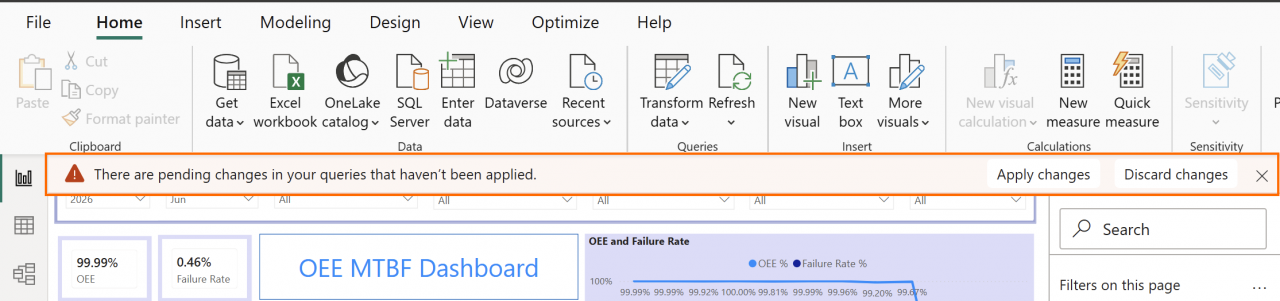
- Next, click "Transform data" dropdown to change parameter. The parameter shows a placeholder of base URL. Set the base URL to point to your Calem service. Click "OK" to save it.
- Click "Transform data" | "Data source settings" to edit permissions. Set username and password to the API key and secret for your Calem service.
- Finally, click "Apply changes" to use the new base URL and permissions to reload data. The report should load data and show the dashbords.
- Refresh/publish. Re-publish to the Power BI Service if it's hosted there, and update the on-premises gateway data source if scheduled refresh is configured.
If a client built their own dashboards on the existing .pbix, they instead need to: open Power Query Editor, add new data tables (Home | Get data | More …, use CalemBI to add new tables) and add new columns to existing tables (Home | Transform data | Transform data | Refresh preview | Refresh preview).
Additional Resources
- Introducing the New Reporting Module in Calem
- Making a Shared Search Required
- How to Use the Calendar View for Work Orders
- How to Set Up Map Views in Calem
- How to Visualize Work Orders by Open WO Chart
- Work Order Logbook
- How to Manage Asset Relationship in Calem
- Dashboard Module Training
- PM Module Training
- Work Order Module Training
- How to Manage Resource Schedules
- How to Do Weekly Schedules by Teams
- User Guide and Admin Guide (customer account required)
- Calem Enterprise Training Site
- Calem Enterprise Blogs
- Calem Enterprise demo
About the author

By accepting you will be accessing a service provided by a third-party external to https://calemeam.com/