Calem Blogs
Item List Tip: How to Check Photo Attachments in Items
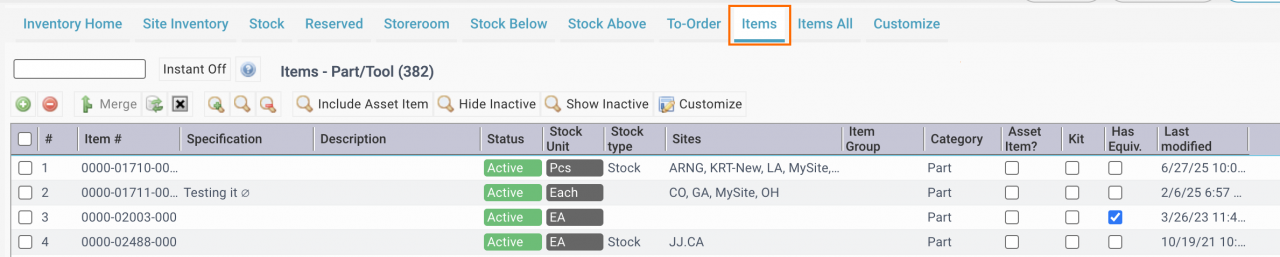
A photo may be attached to an item for inventory search and verification. There is a quick way to verify if a photo is attached to an item from the Items list (screenshot below) at (Inventory | Home | Items Tab).
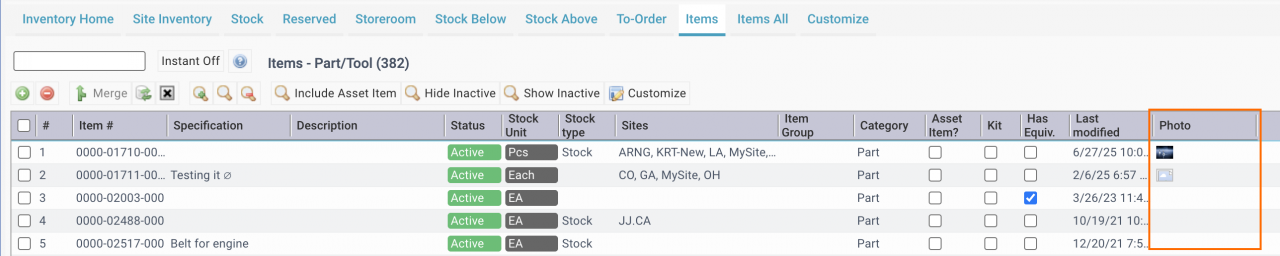
The first step is to Right-click inside the caption row of the list (#, Item #, Specification, ...) to add "Photo" column to the list (next screenshot). To show items with photos, click the caption of "Photo" column twice (to order photo column in descending order).
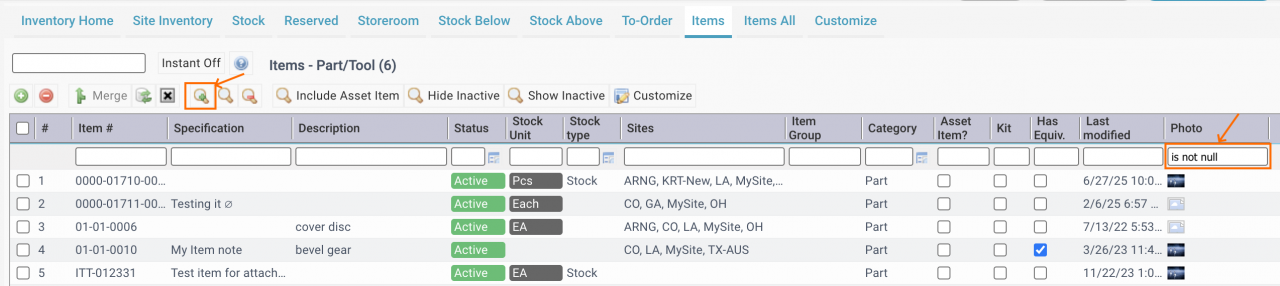
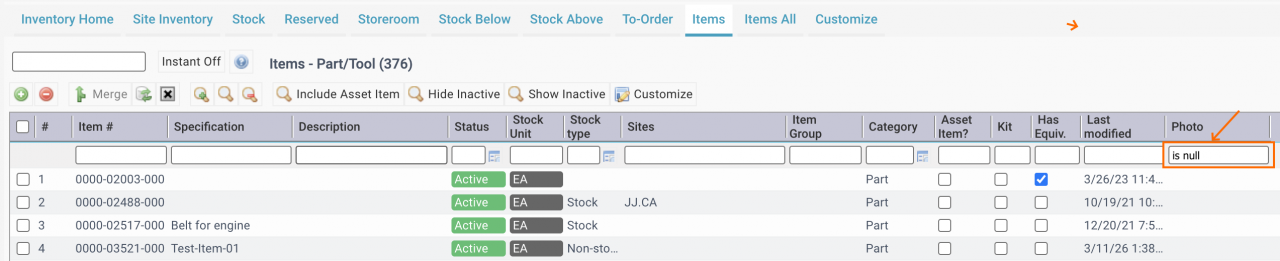
List search row (screenshot below) may be used to query items with photos. Enter "is not null" under "Photo" caption to show items with photo attached. To show items without photos, enter "is null" (next screenshot). Additional fields may be filtered in the list search row when needed.
About the author

By accepting you will be accessing a service provided by a third-party external to https://calemeam.com/